
How to Use TempmailSo: Step-by-Step Guide
To use TempmailSo, open the site, copy the temporary address it creates, and wait for incoming messages in the inbox. No account is needed, and the whole process takes less than a minute.
This guide shows the complete flow, from creating an address to receiving a test email, sharing the inbox with a QR code, changing the address, and deleting it when you finish. The buttons may look small on a phone, but the steps is pretty simple.
What is TempmailSo used for?
TempmailSo provides a free temporary email address and a disposable inbox for messages you do not want sent to your personal email. Common uses include receiving a low-risk verification message, downloading a one-time resource, reducing signup spam, or checking an app's email flow.
It is not a replacement for a normal email account. Do not use a temporary inbox for banking, password recovery, medical records, work documents, or private conversations. Anyone who gets access to the mailbox link or address may be able to see messages there.
How to create a temporary email address
Step 1 - Open TempmailSo
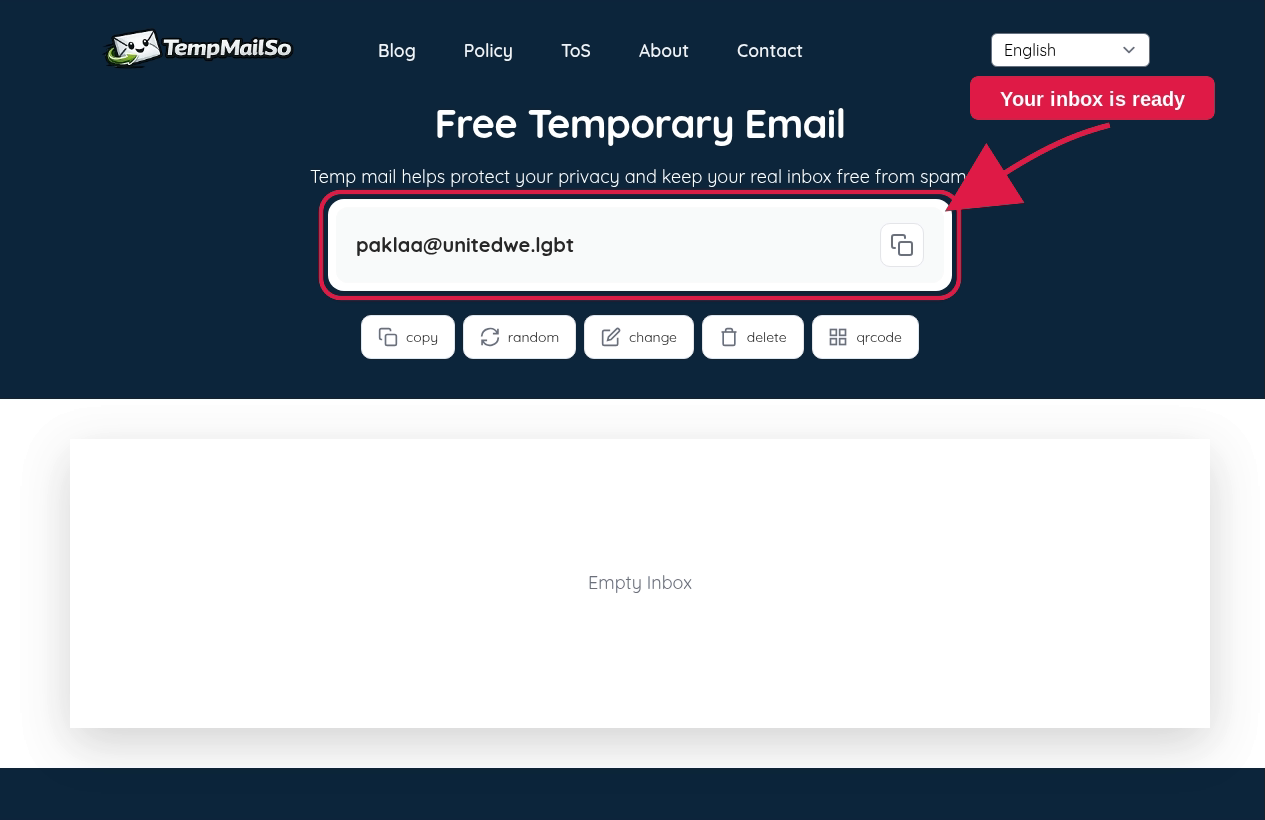
Go to TempmailSo. The service creates an address automatically when the inbox loads. You can use the displayed address right away; registration and a personal email are not required.
Step 2 - Copy the temporary email address
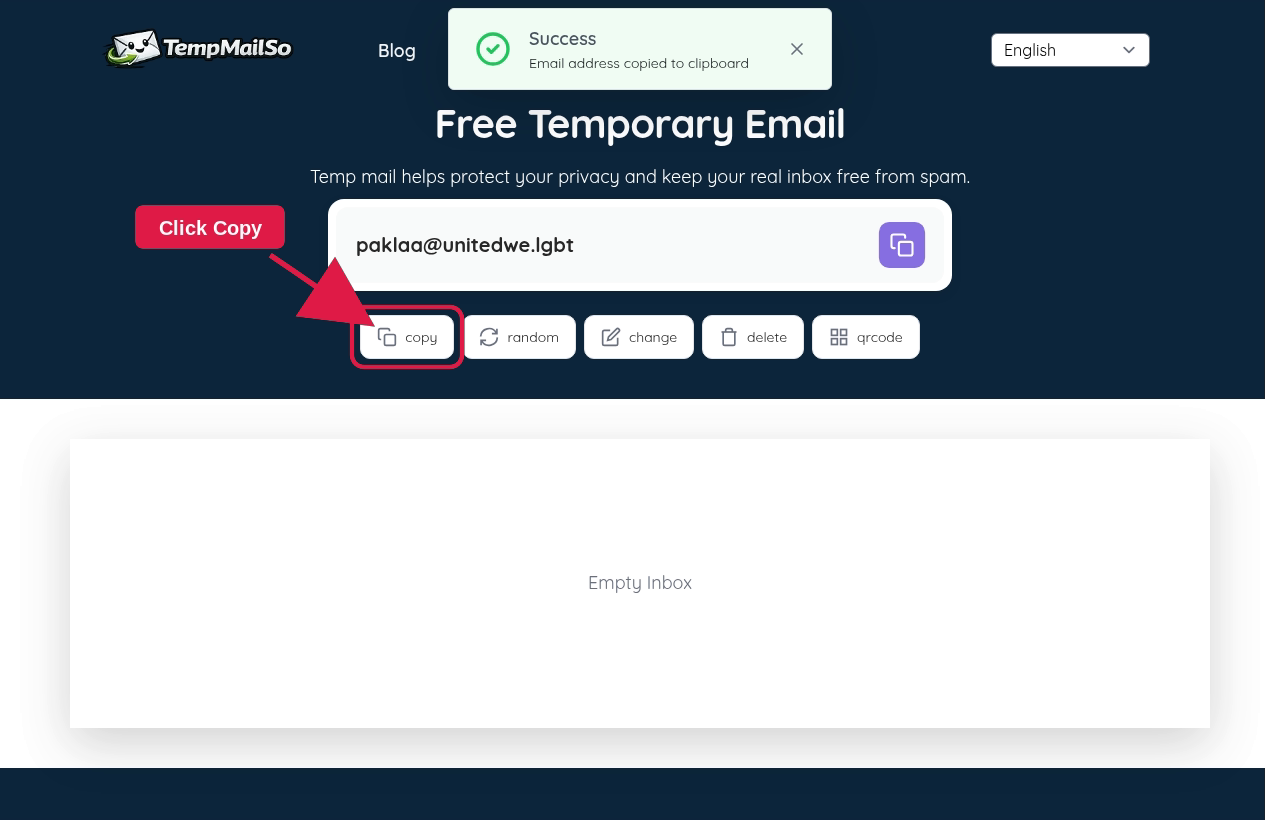
Click the Copy button beside the address. A short confirmation appear after the address is copied. Paste it into the website, app, or test form that needs an email.
Step 3 - Wait for the incoming email
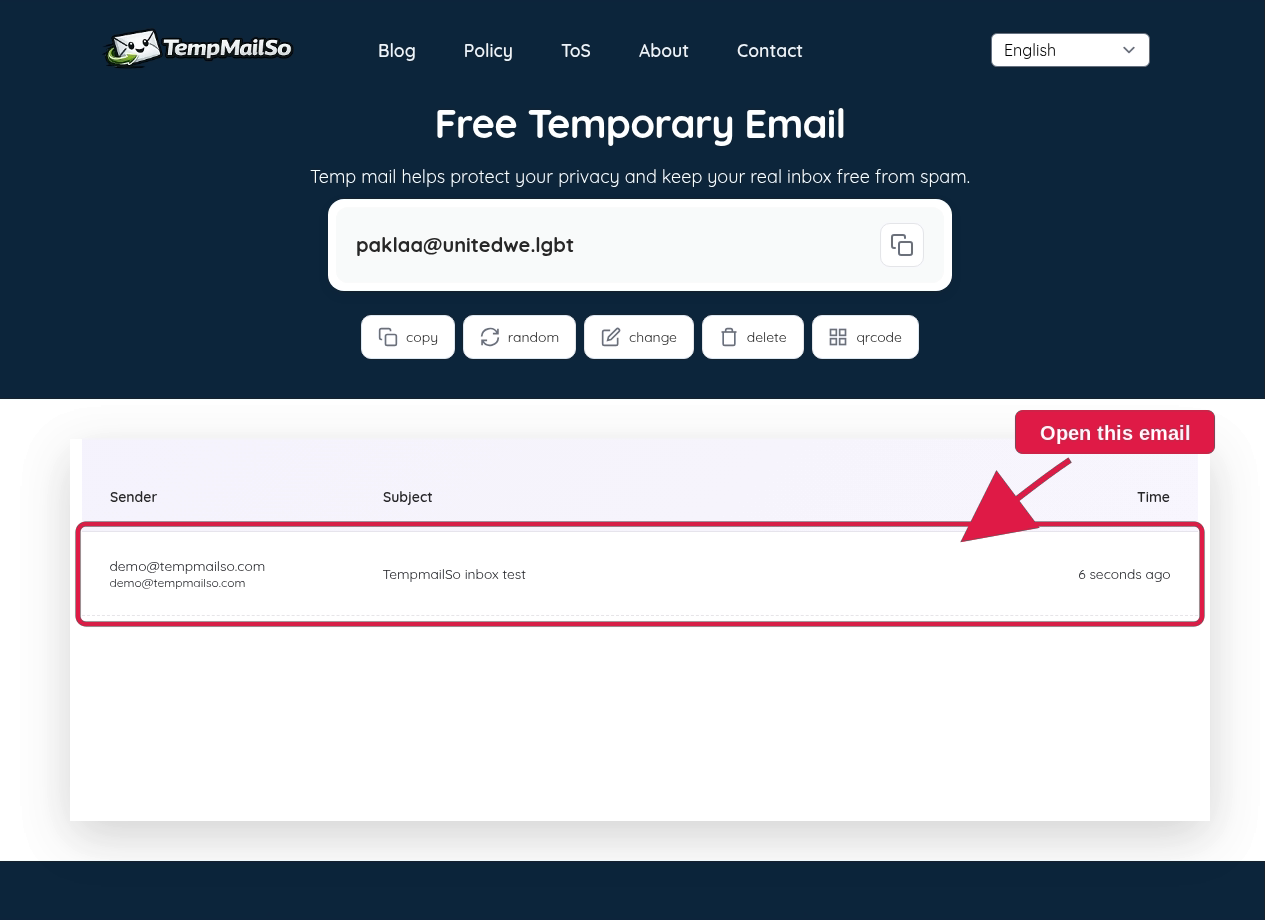
After you submit the address, keep the inbox open and wait for the message. New mail appear in the incoming messages area. If you are testing an application, check the sender, subject, links, and the message layout. Our email testing inbox guide explains this workflow in more detail.
How to use the QR code to open the same inbox
Open the same inbox with QR Code
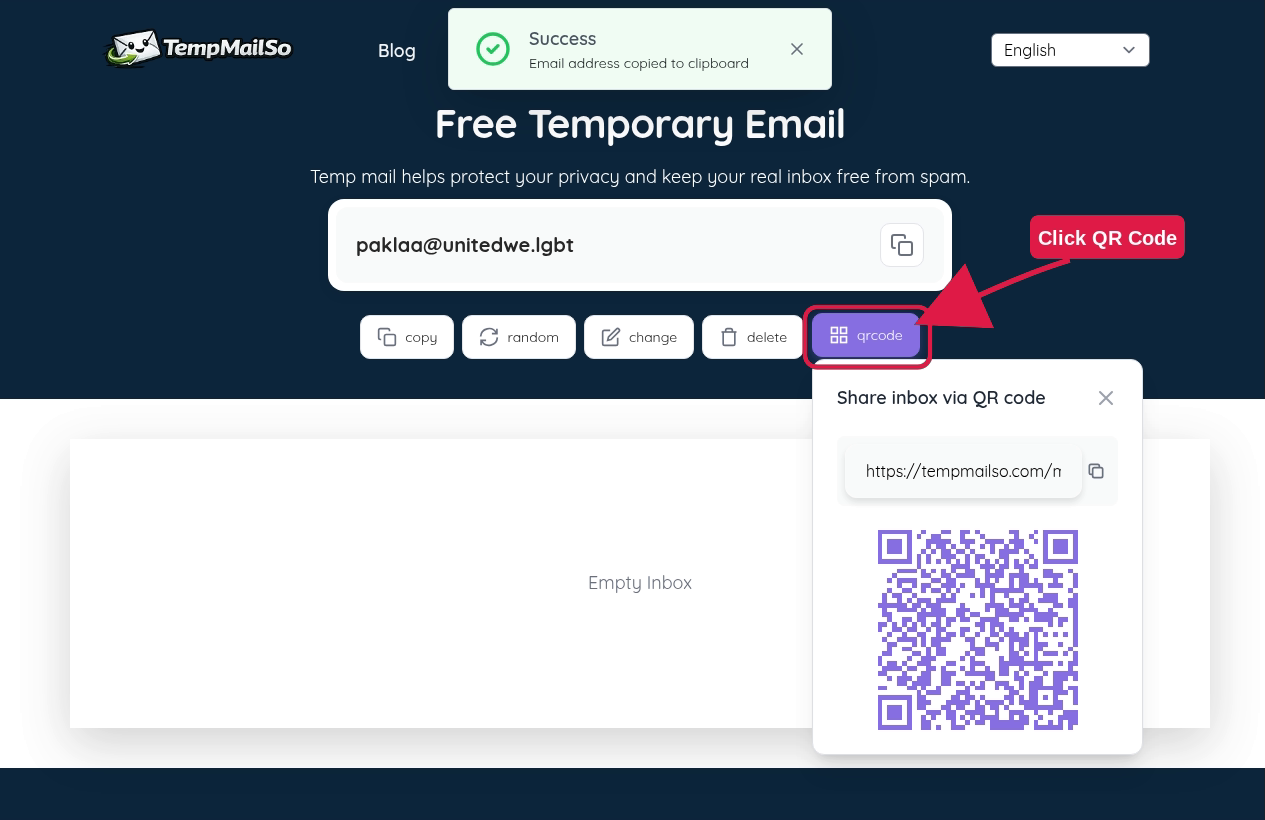
TempmailSo can share the current mailbox with a QR code. Click QR Code, then scan the code with your phone or another device. The QR code contains a mailbox link, so use it privately and close the sharing panel when you are done.
How to change the temporary email address
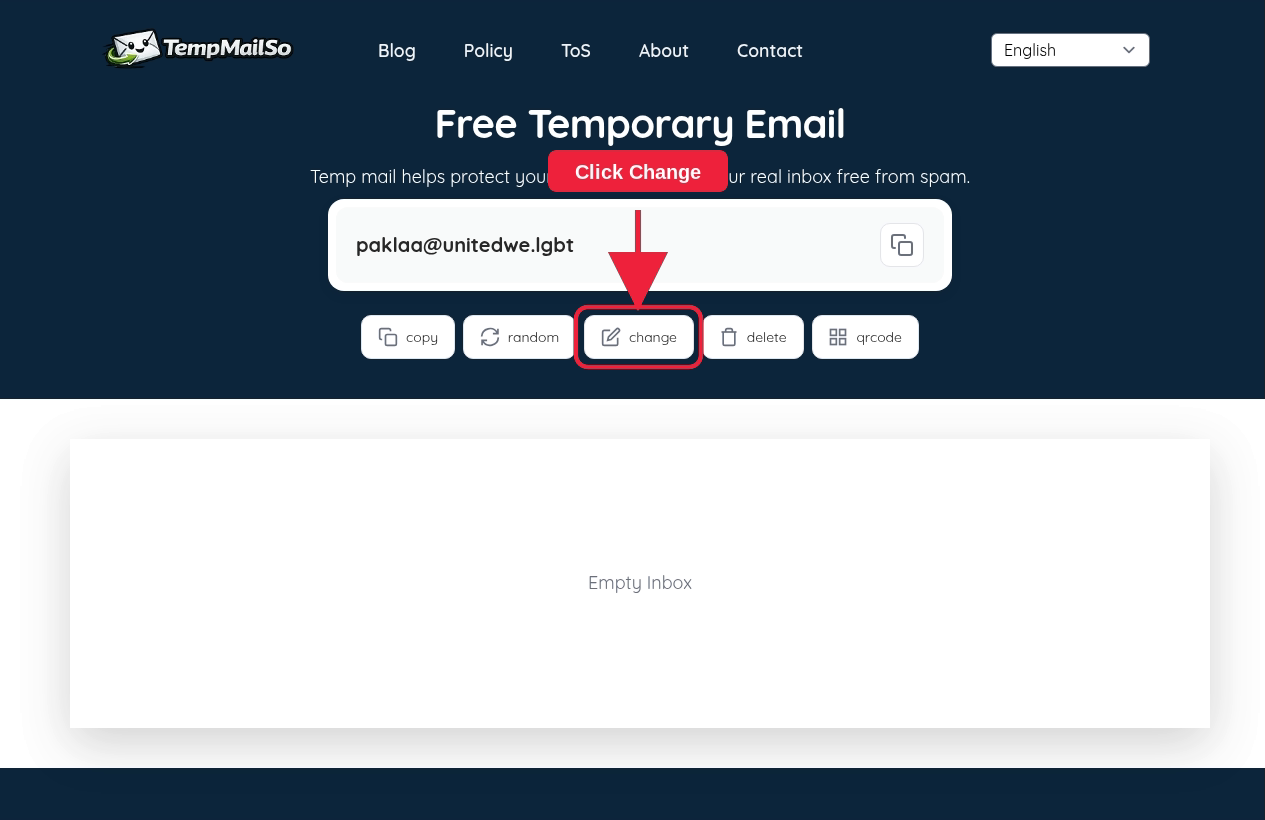
Step 1 - Click Change
If you want a different address, click Change in the inbox controls. This opens the address options. Changing the address may move you away from the current inbox, so read the form before confirming.
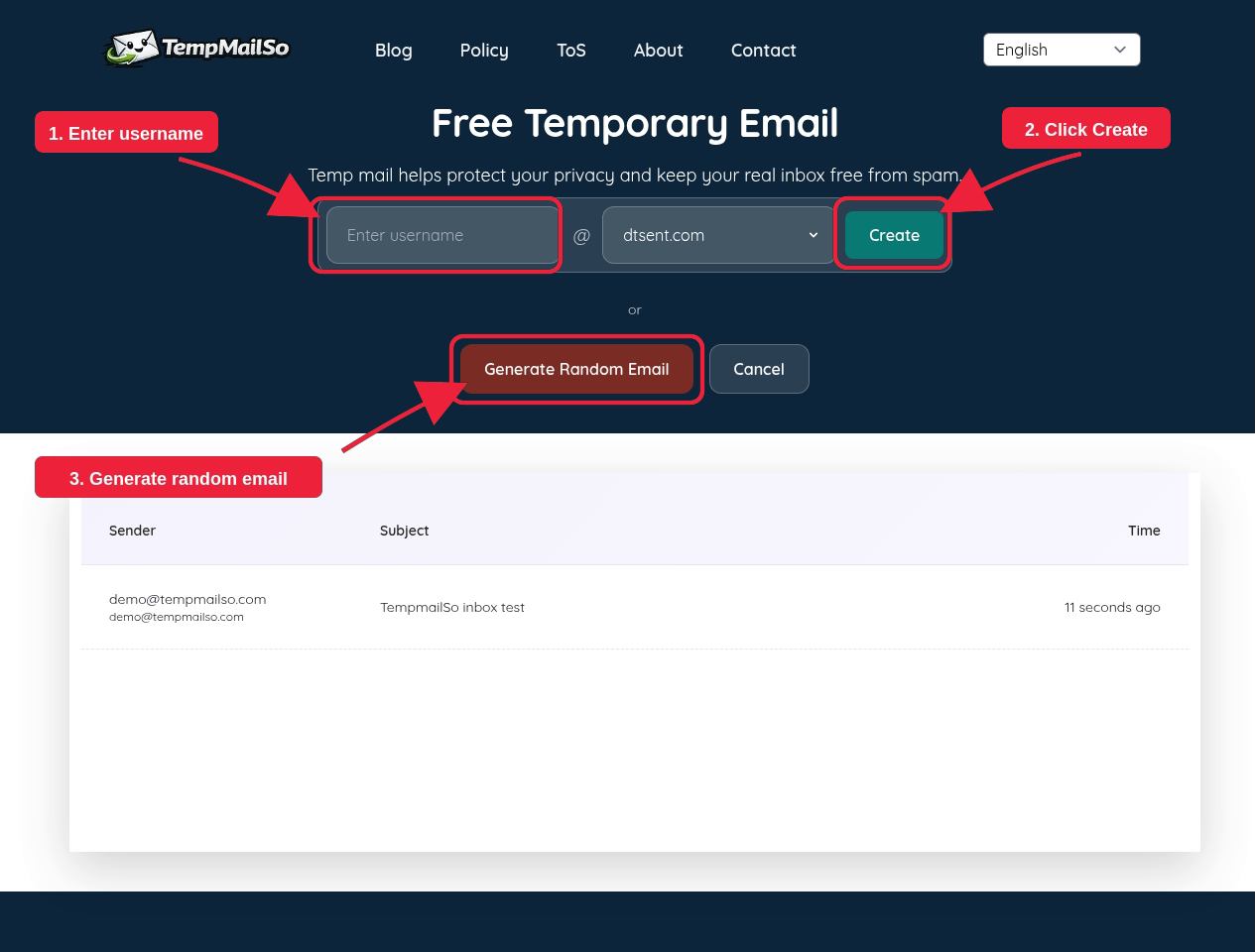
Step 2 - Enter a username or generate a random email
Enter a username if you want an address that is easier to recognize, then click Create. Alternatively, click Generate Random Email to get a new address without choosing a name. A username can be already taken, so try another one if the form does not accept it.
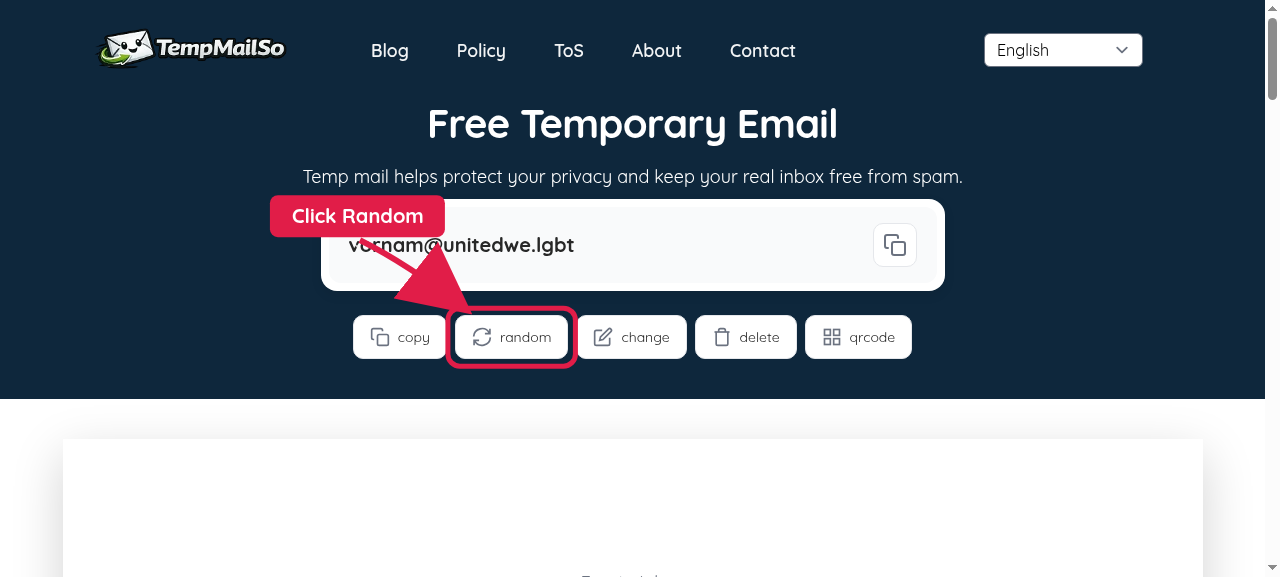
Step 3 - Confirm the new inbox is ready
When the new address is created, the inbox screen shows the updated address. Copy it before pasting it into a signup or testing form. If you selected a random address, the same screen confirm that the new mailbox is ready.
How to delete a temporary email address
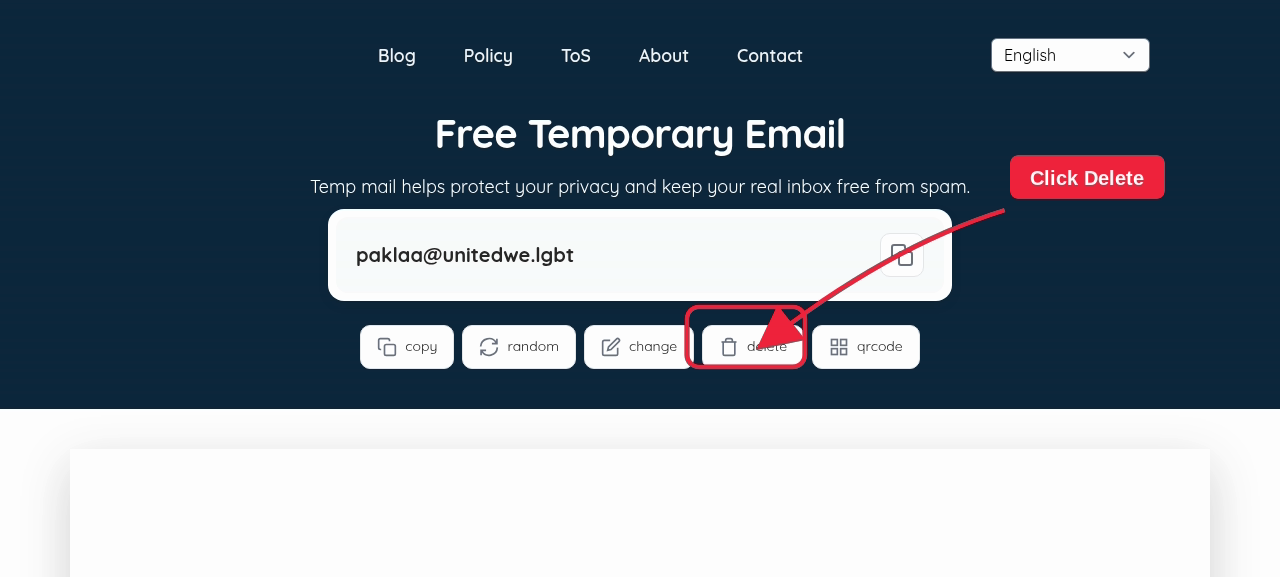
Delete the temporary email address
Click Delete in the inbox controls when you no longer need the address. Deleting or allowing the inbox to expire means you should not expect to recover important messages. Temporary email works best for short-lived, low-risk tasks.
People also ask about temporary email
How do I get an OTP through temporary email?
Copy the TempmailSo address, enter it where the service asks for an email, and return to the inbox. When the OTP message arrives, open it and enter the code before it expires. Some website block disposable addresses, so delivery cannot be guaranteed for every service.
Can I create many temporary email addresses?
You can create another address with Change and then use Generate Random Email. Keep in mind that each address are intended for temporary use, not for building permanent accounts or avoiding a service's rules.
Is a temporary email address traceable?
A disposable address keeps your personal inbox private, but it does not make every online activity anonymous. Websites can still collect information such as your IP address, browser details, or account activity. Use a temporary email as a spam-reduction tool, not as a promise of total anonymity.
Temporary email safety checklist
- Use the inbox only for low-risk messages.
- Never use it for password recovery or an account you need long term.
- Do not put sensitive personal information in the inbox.
- Do not share the QR code or mailbox link in a public post.
- Delete the address when your task is complete.
Summary
Using TempmailSo is straightforward: open the site, copy the automatically created address, wait for incoming mail, and delete the inbox when finished. The Change, QR Code, and Generate Random Email buttons give you extra control without requiring an account.